
Looking for the best AI graphic design tools to speed up your workflow in 2026? You’ve landed in the right place.
Whether you’re a freelancer trying to put together client deliverables faster, a small business owner who needs professional visuals without hiring a designer, or a creator building a brand from scratch — AI design tools have genuinely changed what’s possible without a steep learning curve or a big budget.
This guide covers 7 tools I’d actually recommend — not a padded list of 20 tools half of which are clones of each other. Each one has been researched for its current features and pricing, so what you’re reading isn’t outdated information recycled from two years ago.
Table of Contents
What is an AI Graphic Design Tool?
An AI graphic design tool is software that uses machine learning to help you create visual content — things like mockups, logos, social media graphics, posters, presentations, and more. Instead of starting from a blank canvas and figuring out every layout decision yourself, you give the AI a starting point (your design, a text prompt, or a template) and it does a lot of the heavy lifting for you.
The quality has improved a lot in recent years. Tools that used to spit out generic-looking results now produce visuals that can genuinely compete with professional work, especially for common use cases like product mockups, brand assets, and marketing graphics.
Why Should You Use One?
A few honest reasons:
Speed. Tasks that used to take an hour in Photoshop — like placing your design on a realistic product photo — now take under a minute. If you’re creating content at volume, that time adds up fast.
Cost savings. Hiring a freelance designer for every small project is expensive. AI tools let you handle the straightforward work yourself and save professional design time for things that actually need it.
Consistency. A lot of AI design tools keep your brand colors, fonts, and styles in sync across different formats. That kind of consistency used to require a brand style guide and someone to enforce it.
Accessibility. You don’t need to know Illustrator or Photoshop anymore to produce something that looks polished. Most of these tools are genuinely beginner-friendly.
How to Get Started with AI Design Tools
The process is usually the same across most platforms:
- Choose your tool based on what you need — mockups, social graphics, logos, etc.
- Upload your design or asset — most tools accept PNG, JPG, and sometimes SVG.
- Pick a template or let the AI suggest one based on your input.
- Customize — change colors, placement, background, text, and other elements.
- Download in the format you need (JPG, PNG, PDF, PSD depending on the tool).
Now let’s get into the actual tools.
Top 7 AI Graphic Design Tools to Use in 2026
1. MockupGenerator.ai — Best for Product Mockups (Free)
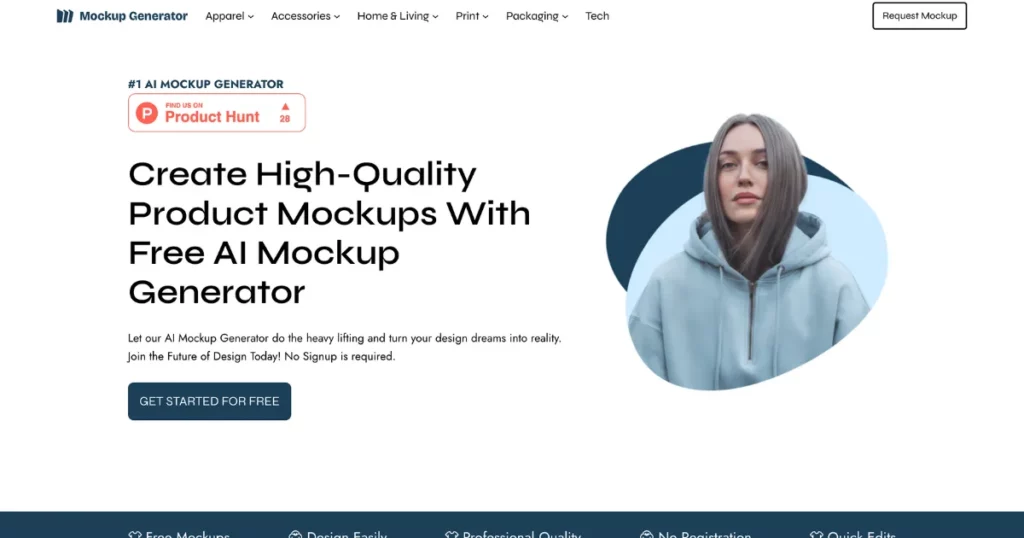
If you’re selling products online, running a print-on-demand store, or building a brand that needs realistic product visuals, the AI Mockup Generator from MockupGenerator.ai is probably the most practical tool on this list — and it’s free to start.
The platform gives you access to 1,000+ AI mockup templates across 25+ categories, including apparel, packaging, tech devices, books, posters, mugs, cans, and more. What sets it apart from most other mockup tools is that the templates are AI-generated, not just stock photography with smart objects layered on top. This means the lighting, shadows, and texture feel more natural and less “clip art.”
The workflow is straightforward: pick a category, upload your design or logo, and the AI places it realistically on the product. You can tweak background colors, adjust placement, change the product color, and create mockups across 25+ categories — all without a watermark and without making an account.
If you want a step-by-step walkthrough for specific product types, their blog is worth checking out. For example, if you’re working on branding mockups for a client or putting together packaging mockups for an e-commerce launch, those guides walk you through the full process inside the editor.
Pricing:
| Plan | Price |
|---|---|
| Free | $0/month — 1,000+ templates, no watermark, no signup required |
Pros:
- Completely free to use without a watermark — rare for mockup tools
- No signup required to generate and download
- 1,000+ templates across 25+ product categories
- Mobile-friendly editor — works well on phones
- AI adjusts design placement, shadows, and lighting automatically
Cons:
- Primarily focused on mockups — not a full-suite design platform
- Custom templates and AI scene generation require the Pro plan
- Free tier doesn’t include commercial licensing (check terms for business use)
2. Canva — Best All-in-One Design Platform
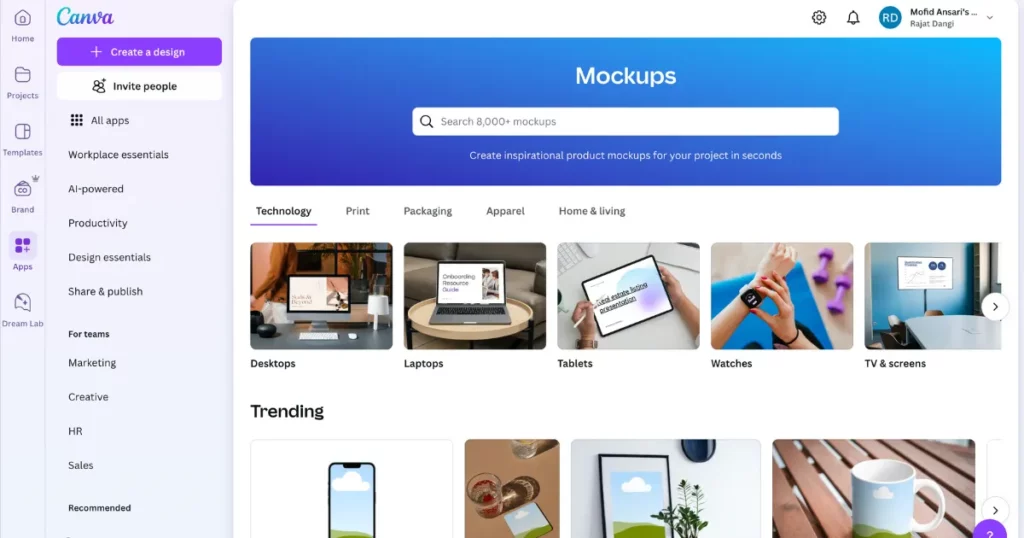
Canva doesn’t need a long introduction at this point — it’s one of the most widely used design tools in the world, serving over 170 million users. What makes it relevant in 2026 is how far its AI features have come.
The platform now includes Magic Studio, which bundles together tools like Magic Write (AI copywriting), Magic Resize (one-click format adaptation), Magic Eraser (remove unwanted elements from photos), and an AI image generator. For teams, there are collaborative features, shared brand kits, and workflow approvals.
Where Canva shines is versatility. You can design social media posts, presentations, resumes, menus, email headers, video thumbnails, and more — all in one place. The template library is enormous, and the drag-and-drop interface is genuinely easy to learn. Even without the paid plan, the free version is usable for most basic needs.
The downside is that the free plan has become noticeably more restricted over time, and the Teams pricing increased significantly in 2024. If you’re managing more than a few seats, it can get expensive.
Pricing:
| Plan | Price |
|---|---|
| Free | $0 — 250,000+ templates, 5 GB storage, basic AI tools |
| Pro | $15/month or $120/year — 1 TB storage, Brand Kit, Background Remover, full Magic Studio |
| Teams | $10/user/month (min. 3 users) — collaboration + admin controls |
| Enterprise | Custom pricing |
Pros:
- Massive template library covering almost every use case
- AI tools genuinely speed up the design process
- Great for non-designers — very little learning curve
- Free plan is actually usable, not just a teaser
- Works for video, presentations, and web content too
Cons:
- Premium templates and assets are locked behind the Pro plan
- Teams pricing jumped significantly in 2024 (300%+ increase for many users)
- AI credit limits apply on free and even Pro plans for heavy usage
- Not great for complex or highly technical design work
3. Adobe Firefly — Best for AI Image Generation Within the Adobe Ecosystem
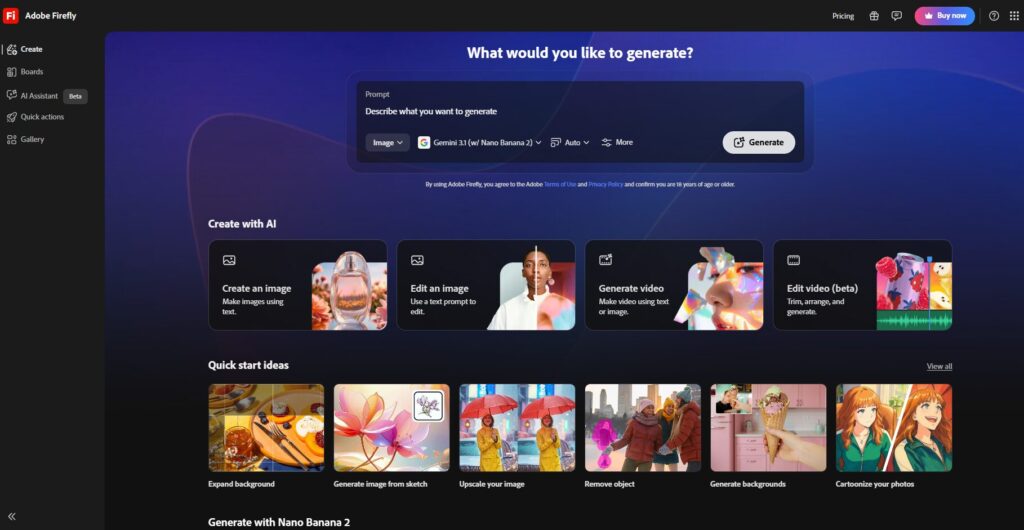
Adobe Firefly is Adobe’s standalone AI image generation platform, and it’s improved considerably since its early days. In 2026, it supports text-to-image generation, generative fill, text effects, generative recolor, text-to-video, sound effects generation, and image-to-video — all with a focus on being commercially safe (trained on licensed content).
If you’re already working inside Creative Cloud, Firefly’s real advantage is integration. It connects with Photoshop, Illustrator, and Adobe Express, so you can use generative fill and expand directly inside the tools you already know. For standalone use, the Firefly web app is clean and reasonably easy to use.
The credit system can be confusing at first. Standard features like basic text-to-image are included with unlimited generations on paid plans, but premium features — especially video — consume credits quickly. One minute of video translation uses around 300 credits, so heavy video users should plan accordingly.
Pricing:
| Plan | Price |
|---|---|
| Free | $0 — limited complimentary generations |
| Standard | $9.99/month — 2,000 premium credits/month |
| Pro | $19.99/month — 4,000 premium credits, includes Adobe Express Premium and Photoshop web/mobile |
| Premium | $199.99/month — 50,000 credits, for high-volume video and enterprise workflows |
Pros:
- Commercially safe — trained on licensed content, outputs are safer for business use
- Tight integration with Photoshop, Illustrator, and Creative Cloud
- Unlimited standard generations on paid plans
- Text-to-video, sound effects, and partner AI models (Google, OpenAI) available
- High-quality image generation, especially for photorealistic outputs
Cons:
- Credit system is confusing — video eats through credits fast
- API access requires an enterprise agreement (starts ~$1,000/month)
- Expensive for occasional users; not worth it if you’re outside the Adobe ecosystem
- Free plan is quite limited for real production use
4. Fotor — Best for Photo Editing with AI Design Features
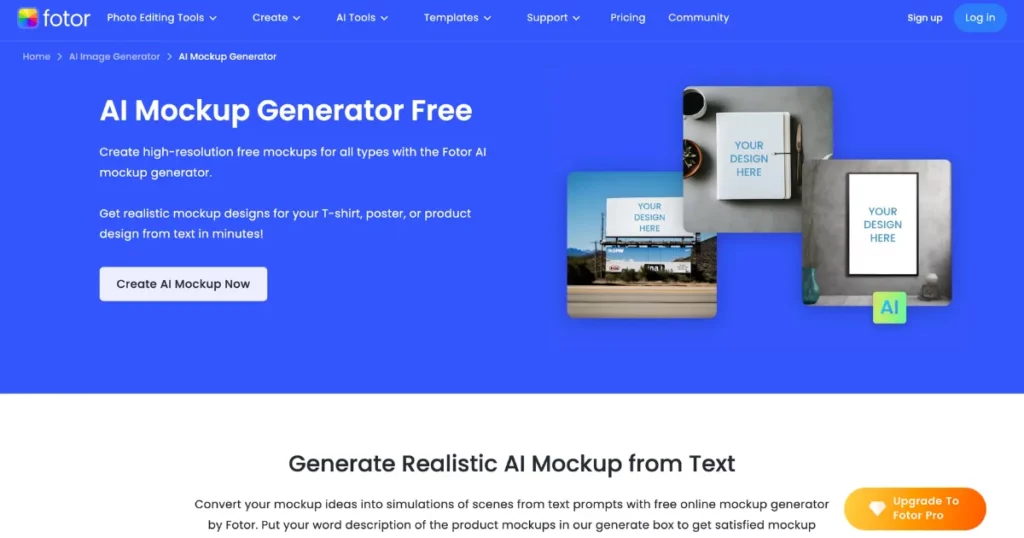
Fotor sits in an interesting middle ground — it’s primarily a photo editing tool, but over the years it’s added enough design features (templates, layouts, AI image generation) that it now works reasonably well as a graphic design tool too.
The AI features worth mentioning: there’s an AI image generator that can create realistic headshots, product photos, and conceptual art from prompts. The background remover works well on most clean product shots. There’s also an AI art effects tool that can restyle your photos in different artistic styles.
For small business owners who mostly need to edit existing product photos and create simple graphics — social posts, banners, basic ads — Fotor gets the job done without requiring you to learn anything complex. It’s available as a web app, desktop app, and mobile app, which makes it flexible.
The limitations show up when you try to push it further: the image generation results can be inconsistent, and the templates feel less polished compared to Canva. It’s more of a “good enough for most things” tool than a flagship product.
Pricing:
| Plan | Price |
|---|---|
| Free | $0 — basic editing and design features with watermarks |
| Pro | $3.33/month (billed annually) — removes watermarks, unlocks AI features and HD downloads |
Pros:
- Very affordable paid plan — one of the cheapest on this list
- Available on web, desktop, and mobile
- Decent AI headshot and product image generation
- Background remover works well for standard use cases
- Good for photo-heavy workflows
Cons:
- AI image quality is inconsistent for complex prompts
- Template library is smaller and less polished than Canva
- Not well-suited for complex brand design or print-ready work
- Privacy and intellectual property concerns worth reading through before uploading client work
5. Visme — Best for Data-Heavy Presentations and Infographics
Visme takes a different approach from most tools on this list. It’s built specifically for presentations, infographics, reports, and interactive content — which makes it genuinely useful for marketers, agencies, and teams that regularly communicate data visually.
The design tools are solid: a drag-and-drop editor, smart color suggestions, hundreds of chart types, and data import from spreadsheets. There’s also an AI image generator and an AI presentation builder that can create a full slide deck from a prompt or document.
Where Visme excels is in output quality for business content. Infographics look professional without much effort, and the animated charts and interactive features are things you won’t find in Canva unless you’re willing to do significant workarounds.
The pricing is on the higher end, which makes it less suitable for casual or individual use. It’s more of a team tool for people who regularly produce polished business presentations and reports.
Pricing:
| Plan | Price |
|---|---|
| Free | $0 — limited templates and exports with Visme branding |
| Starter | $29/month/person — removes branding, expands template library |
| Pro | $59/month/person — full access including interactivity, data features, and analytics |
| Teams/Enterprise | Custom pricing |
Pros:
- Built for data visualization — charts, infographics, and dashboards look excellent
- Interactive and animated content options
- AI presentation builder is genuinely useful for first drafts
- Good collaboration and commenting tools
- XLIFF import/export for multilingual content teams
Cons:
- Expensive compared to general-purpose tools like Canva
- Overkill if you don’t regularly need infographics or data presentations
- Occasional bugs with the AI image generator
- Premium templates require Starter plan or above
6. Khroma — Best Free AI Color Palette Generator
Khroma is a specialized tool that does one thing really well: it helps you find colors that work together. You train the AI by selecting 50 colors you like, and it uses that input to generate endless personalized color combinations, filtered by your taste.
For designers and non-designers alike, color selection is one of the hardest parts of design. Khroma takes the guesswork out by running your preferences through a model trained on color theory and current design trends, then showing you combinations as typography, gradients, palette swatches, or applied to images.
It gives you hex codes, RGB values, CSS code, and WCAG accessibility ratings for every palette, which is genuinely useful if you’re building something for the web and need to meet contrast requirements.
The obvious limitation is that Khroma is a single-purpose tool — it generates palettes, that’s it. There’s no design editor, no export workflow, and no app or browser extension. But for what it does, it’s hard to beat, especially at the price of zero dollars.
Pricing:
| Plan | Price |
|---|---|
| Free | $0 — full access, no paid plan available |
Pros:
- Completely free with no limitations
- Personalized results based on your color preferences
- Outputs hex, RGB, CSS, and accessibility ratings
- Useful for designers and developers alike
- Shows how colors look in real contexts (typography, UI, gradients)
Cons:
- Requires selecting 50 colors before results become personalized
- No way to export or save collections
- No browser extension or mobile app
- Not a full design tool — purely for palette generation
7. Placeit — Best for Mockup Templates and Merch Design
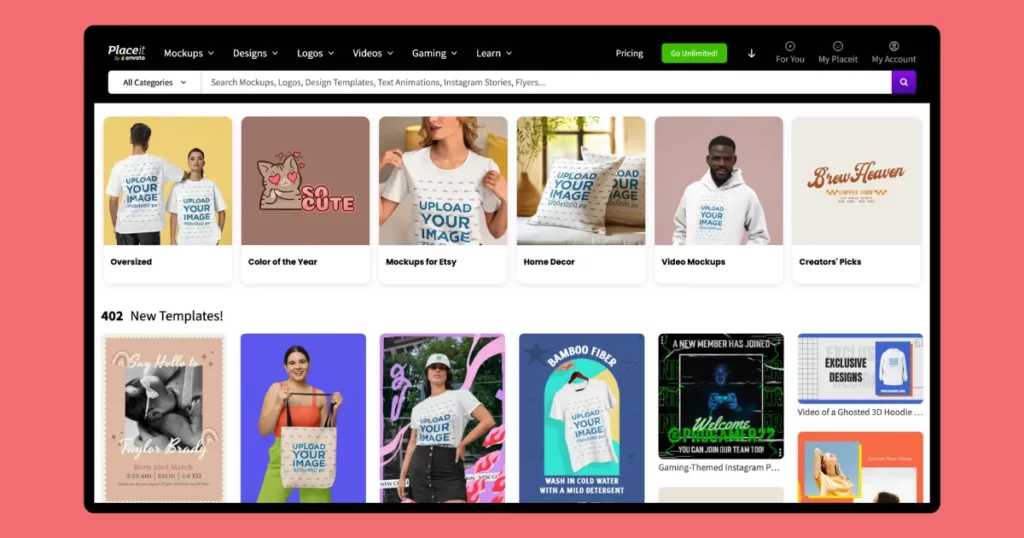
Placeit (owned by Envato) has been around for years and has built one of the largest mockup template libraries available. With 30,000+ templates across apparel, devices, packaging, and lifestyle scenes — plus logo makers, video makers, and social media templates — it’s a solid choice for anyone who needs volume and variety.
The mockup templates are professional-quality and cover a huge range of scenarios. T-shirts, hoodies, phone cases, mugs, notebooks, packaging — if you’re running a print-on-demand store or need to show clients how designs will look in context, Placeit’s library is hard to beat in terms of sheer size.
The business model is simple: one subscription unlocks everything, with no credit limits or per-download charges. Annual billing cuts the cost in half compared to monthly.
One honest caveat worth mentioning: some users have reported difficulty canceling subscriptions, so make sure you understand the cancellation process before committing. Also, the mockup quality, while generally good, can feel a bit stock-photo in some categories compared to AI-generated alternatives.
Pricing:
| Plan | Price |
|---|---|
| Free | Preview-only with watermarks — not usable for production |
| Monthly | $14.95/month — full unlimited access |
| Annual | $89.69/year (~$7.47/month) — same access, 50% cheaper |
Pros:
- 30,000+ templates — one of the largest libraries available
- Unlimited downloads with no credit system
- Covers mockups, logos, videos, and social media designs
- Commercial use rights included in paid plans
- Annual plan is genuinely affordable for the access you get
Cons:
- Free plan is essentially unusable (watermarked previews only)
- Subscription-only — no per-asset purchasing if you have irregular needs
- Some mockup categories feel dated compared to AI-generated alternatives
- Cancellation complaints from users worth noting before subscribing
Is AI Actually Good for Design Work?
Yes — for the right things. AI tools have gotten genuinely good at tasks like placing designs on products realistically, suggesting color palettes, resizing content for different formats, removing backgrounds, and generating starting-point imagery. These are things that used to require either skill or significant time, and AI handles them in seconds.
Where AI still falls short is nuance. A well-crafted brand identity, a campaign concept that tells a real story, design work that requires understanding a client’s culture or market — these still need human judgment. AI tools are best thought of as assistants that handle the mechanical parts of design so you can focus on the decisions that actually matter.
Will AI Replace Graphic Designers?
Not any time soon, and probably not in the way the question usually implies. What AI is replacing is the more repetitive, template-driven work — generating a dozen product mockups, resizing a banner for six different platforms, creating a quick social post from a brief.
The work that requires creative thinking, client communication, conceptual strategy, and brand judgment is still very much in human hands. If anything, the designers who learn to work with AI tools effectively are becoming more productive and more valuable, not less.
Conclusion
There’s no single “best” AI graphic design tool — it depends on what you actually need. If you’re selling products and need fast, professional-looking visuals, the AI Mockup Generator is the obvious starting point — it’s free, no signup needed, and the quality holds up well. If you need an all-around design platform for social media, presentations, and marketing materials, Canva is still the most versatile option. And if you’re deep in the Adobe ecosystem and need AI-powered image generation with commercial licensing peace of mind, Firefly makes sense.
The rest of the tools on this list serve specific needs well — Khroma for color, Placeit for mockup volume, Visme for data presentations, Fotor for photo editing on a budget.
Pick one or two that match your actual workflow, spend an hour with them, and see what sticks.
FAQs
Can AI tools create professional-quality designs?
For many common design tasks — product mockups, social media graphics, simple logos, color palettes — yes, the quality is genuinely professional. For complex brand identity work or highly conceptual design, AI tools are better used as assistants than as the primary designer.
Which AI graphic design tool is best for beginners?
Canva is the most beginner-friendly general-purpose tool. For mockups specifically, MockupGenerator.ai requires no signup and no design experience — just head over, pick a template from the free mockups library, upload your design, and download.
Are these tools free to use?
Several of them have solid free tiers. MockupGenerator.ai is free with no watermarks. Canva has a useful free plan. Khroma is completely free. Fotor and Visme have free plans with limitations. Adobe Firefly has a free tier with limited generations. Placeit’s free plan is essentially just a preview.
Do I need design experience to use AI graphic design tools?
No. Most of these tools are specifically built for people without design backgrounds. The AI handles layout suggestions, color combinations, and realistic design placement so you don’t have to know the technical side.
Can AI replace the need for Photoshop?
For most non-designers, yes — these tools cover the use cases that would otherwise require Photoshop knowledge. For professional design and photo editing work, Photoshop (or similar tools) still offers more control and capability than any AI tool on this list.
What’s the best free mockup generator in 2026?
MockupGenerator.ai stands out for offering 1,000+ templates across 25+ categories without watermarks and without requiring an account. You can create mockups for apparel, tech, packaging, print, home and living, and more — all for free.
Also worth reading: